PHP Update Required in WordPress: Should You Update?
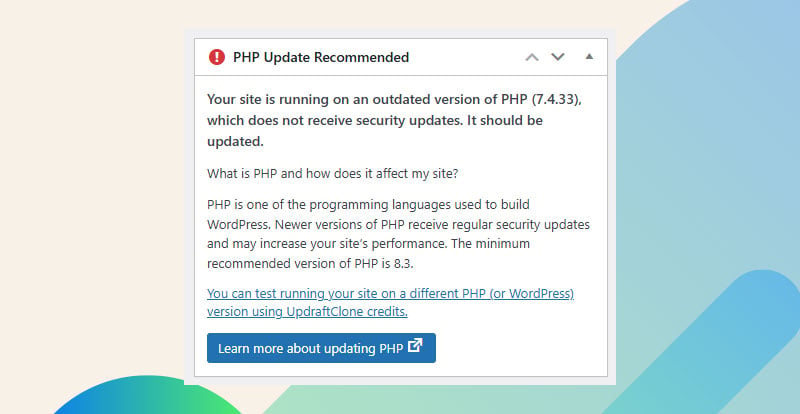
If you see a “PHP update required” message in the WordPress backend, you should take it seriously, but you do not need to panic. It is not the end of the world, and it does not always mean your site is about to break. It means WordPress has detected that your server is running an older version of PHP than it recommends.
In most cases, yes, updating PHP is a good idea. Newer PHP versions can improve speed, security, compatibility, and access to newer features. But the important part is how you update. A PHP update happens at the server level, not inside WordPress, so it can affect every theme, plugin, and custom script that depends on PHP.
Quick Answer: Should You Update PHP?
Usually, yes. But you should not update blindly.
- If we manage your website: reach out to us and let us handle it. Updating PHP is part of our maintenance plan.
- If you have a developer or web team: ask them before changing anything in hosting.
- If you have a small, simple site: the update may be as easy as switching PHP versions in cPanel and testing the site.
- If you have WooCommerce, memberships, or custom code: test the update on staging or a development site first.
- If you are jumping from PHP 7 to PHP 8: treat it as a major update with a higher chance of compatibility issues.
The First Rule Before Updating PHP
The rule I recommend is simple: if you have someone managing your website, let them handle the PHP update. If you are one of our clients, reach out to us and we will take care of it.
PHP updates are usually straightforward, but they can break things in the same way a WordPress core update or plugin update can break things.
For site owners managing things on their own, the decision depends on the size and complexity of the site. A major PHP upgrade, especially something like moving from PHP 7.x to PHP 8.x, has a much higher chance of causing issues than a minor version change. That does not mean you should avoid it. It is still a very good idea to update. It just means you should not treat it like clicking a harmless setting without checking anything first.
Why WordPress Shows the PHP Update Required Message
WordPress relies on PHP to run. Themes, plugins, custom functions, WooCommerce, form plugins, membership systems, and admin features all use PHP behind the scenes. When your PHP version gets too old, WordPress starts warning you because outdated PHP can create real problems.
The warning usually points to one or more of these issues:
- Security: older PHP versions may no longer receive security updates.
- Performance: newer PHP versions can run WordPress faster.
- Plugin and theme compatibility: newer WordPress tools increasingly expect modern PHP.
- Feature support: newer PHP versions give developers access to newer language features.
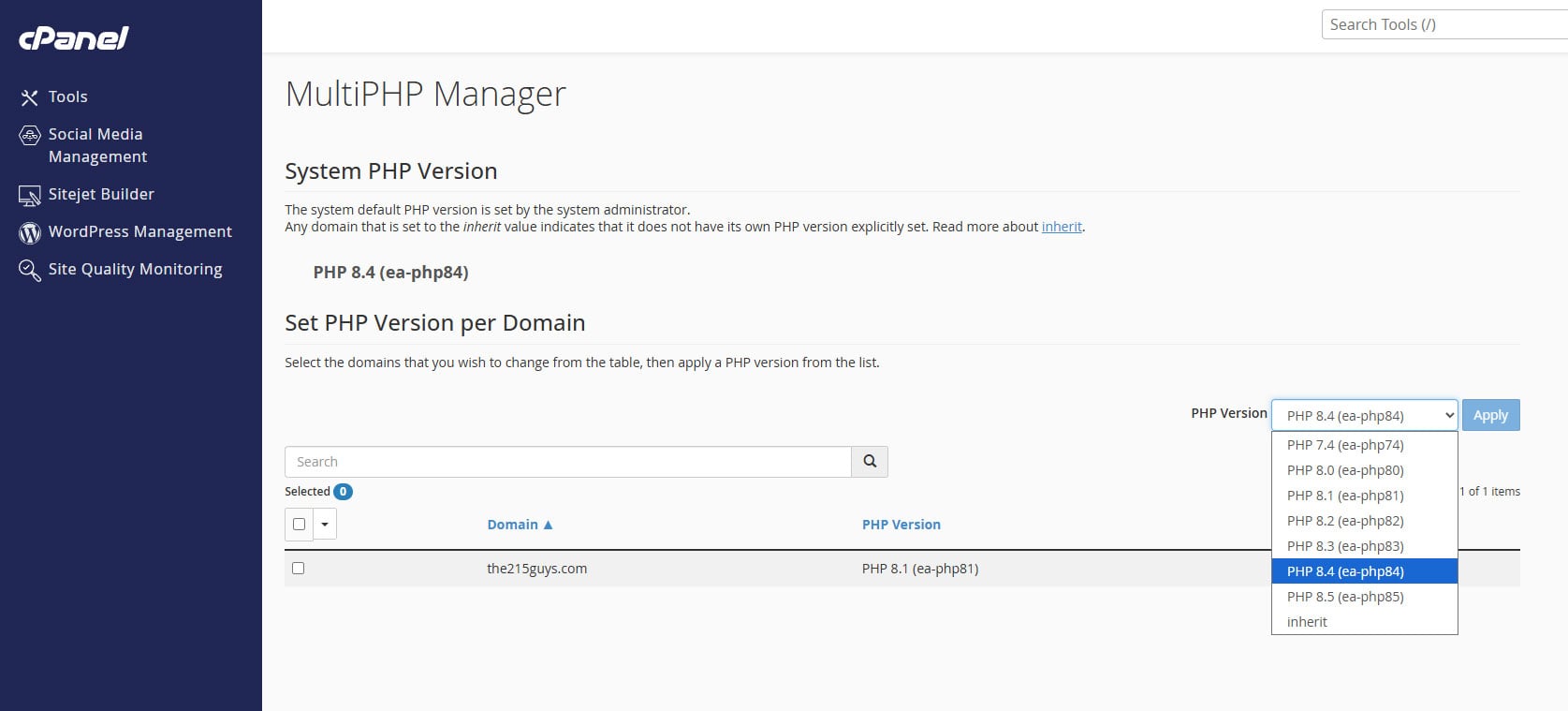
We have been building and maintaining websites for a long time, and we have upgraded many sites from PHP 7 to PHP 8. In most cases, it goes smoothly. On many cPanel hosting accounts, it is just a simple switch from one PHP version to another.
When the upgrade works cleanly, we often see better speed and access to newer features. cPanel also makes testing easier because you can often switch versions, check the site, and switch back if something does not work.
What Can Break During a PHP Update?
The most common issue we see is not WordPress itself failing. It is usually an older plugin, outdated theme, or custom code that does not work properly with the newer PHP version.
Common PHP update problems include:
- Deprecated PHP code in older plugins
- Old theme code that has not been updated
- Custom code written for an older PHP version
- PHP shorthand openers like
<?instead of<?php - Older inline conditional code that newer PHP versions handle less forgivingly
When something breaks, the symptoms can vary. You might see:
- A white screen
- A fatal error
- Broken layouts
- Missing admin screens
- Checkout issues
- A plugin that stops working
- A frontend that works while the backend shows errors
The Most Common Mistake Site Owners Make
The biggest mistake is simply trying the PHP update without understanding what is running on the site. A site owner sees the warning, logs into hosting, changes the PHP version, and then a core plugin breaks. That is the real-world issue we see most often.
What Not To Do
- Do not assume the warning means the site is about to fail immediately.
- Do not change PHP versions without knowing how to switch back.
- Do not assume a backup alone fixes a PHP compatibility issue.
- Do not test only the homepage and call it done.
- Do not ignore the warning forever because the site “looks fine.”
Backups are still important, but they do not solve everything with PHP updates. Since PHP is controlled by the server, restoring a WordPress backup does not automatically fix a server-level compatibility issue. A backup protects your site files and database, which is still worth doing before any major change, but if the active PHP version is incompatible with a plugin, the site may still break until the PHP version is changed back or the bad code is fixed.
The good news is that most PHP update problems are reversible if your hosting makes version switching easy. On many cPanel hosts, we can test a newer PHP version, see if the site works, and switch back if needed. That is much less stressful than people expect.
Small Site vs WooCommerce or Custom WordPress Site
Small brochure websites
For a small brochure-style website with a basic theme, a few common plugins, and no custom functionality, the PHP update is usually low risk. This is rare to say broadly, but for a simple site, I often recommend making the switch, checking the site carefully, and switching back if something fails. This works especially well on hosting with cPanel or another control panel that makes PHP version changes easy.
After switching, check the important parts of the site:
- Homepage
- Key service pages
- Contact forms
- Navigation
- Images and layouts
- WordPress admin dashboard
- Any plugin-powered features
WooCommerce stores
A WooCommerce store needs a more careful approach. Do not casually update PHP on a live store without testing. Checkout and store functionality can be affected by PHP compatibility issues.
For WooCommerce, we recommend using a staging or development site first. On staging, you can:
- Update PHP away from the live store
- Check whether the site loads correctly
- Test the checkout process
- Review the admin area
- Look for visible errors or broken functionality
- Switch back or fix issues before touching the live site
A small visual bug on a brochure site is one thing. A broken checkout on a live store can cost real money.
Membership and custom-coded sites
Membership sites and custom-coded WordPress sites should also be tested before updating PHP. These sites often depend on custom functions, login rules, protected content, payment integrations, user roles, and third-party APIs. Custom code written years ago may include old PHP syntax or assumptions that no longer work in PHP 8.
If your site has any of the following, I would not treat the PHP update as a quick hosting setting change:
- Custom plugins
- Custom theme functions
- Older developer-built features
- Membership or login restrictions
- Payment-related functionality
- Business-critical forms or workflows
Compatibility Checks Before Updating PHP
Before changing PHP versions, look at the parts of your site that are most likely to cause problems.
Check these first
- Plugins: look for anything outdated, abandoned, or already showing errors.
- The theme: older themes can contain PHP code that does not work well on newer versions.
- Custom code: custom functions, custom plugins, and old snippets deserve extra caution.
- Your PHP jump: moving from PHP 7.4 to PHP 8.x is a bigger deal than a minor version change.
- Error logs: existing PHP warnings or deprecated notices can become bigger problems after the update.
- Hosting rollback: make sure you know whether you can switch back quickly if something fails.
Beginners often miss error logs because the site appears to be working visually, but the server may already be recording compatibility problems.
Hosting Environment Matters More Than Most Guides Admit
A lot of online guides make PHP updates sound the same on every site: take a backup, click a button, done. That is too simple. Hosting environments matter.
Shared hosting with cPanel
- Usually the easiest environment for PHP updates
- Often lets you switch PHP versions from the control panel
- Often allows quick rollback if the site has a problem
- Good for testing simple sites when the host makes version switching easy
Dedicated servers and cloud hosting
- Can be more complicated than a cPanel dropdown
- May involve server packages, PHP extensions, and configuration files
- Can be affected by outdated server software, such as an older version of Ubuntu
- May require someone who understands both WordPress and the server environment
We see the most problems on dedicated servers and cloud hosting, especially when the server itself is outdated. In those cases, the issue is not always WordPress. It may be the server configuration, missing PHP extensions, or outdated operating system dependencies.
What If You Are Stuck on an Old PHP Version?
If you cannot update PHP because a legacy plugin or theme breaks, the issue should still be addressed eventually. Delaying forever is not a good plan because old PHP versions become harder to support and less secure over time.
Your safest option depends on what is blocking the update:
- One outdated plugin: replacing the plugin may be the cleanest path.
- An old theme: updating, rebuilding, or replacing the theme may be needed.
- Custom code errors: a developer may need to update the code for modern PHP.
- A limiting host: changing hosts may be worth considering if your host cannot support modern PHP well.
- A complex site: delaying the PHP update briefly may be reasonable while you build a safer plan.
There is not always a simple one-click solution. When a site is stuck on old PHP because of legacy code, it is usually best to have someone experienced review the site, identify the blocker, and decide whether to replace, repair, or temporarily delay the update while a safer plan is put in place.