What the WordPress critical error usually means
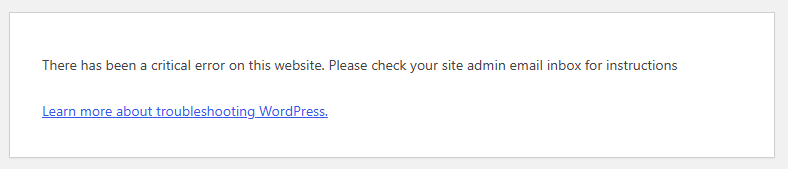
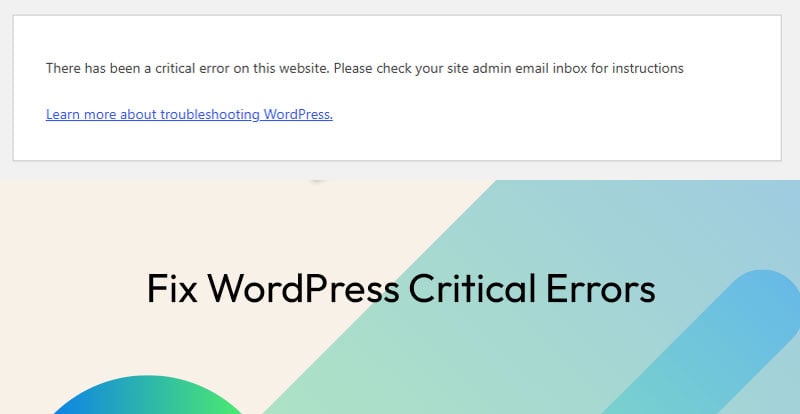
When WordPress shows the message “There has been a critical error on this website”, I usually treat it as a PHP fatal error until the logs prove otherwise. In real troubleshooting, that message is not specific enough to tell us what broke. It only tells us WordPress hit something serious enough that it could not finish loading the page.
The first thing I check is always the error log. Not plugins. Not the theme. Not random settings. The log is where the actual cause usually shows up, including the file path, line number, and type of PHP error.
Most of the time, the cause is one of these:
- A PHP coding mistake, such as a missing semicolon or incorrect function syntax
- A plugin update that is not compatible with the current PHP version
- A theme update that introduced a PHP error
- A hosting PHP version change that exposed old or incompatible code
- A memory limit issue, although I see this less often than direct PHP fatal errors
- A corrupted or incomplete plugin, theme, or WordPress core file after an update
In my own experience, the most common version of this is simple: someone edited PHP directly and made a small syntax mistake. I’ve done it myself when coding through the WordPress file editor and forgetting a semicolon. The site immediately throws a critical error because PHP can’t parse the file anymore. The other common cases show up after plugin, theme, or PHP version updates.
Check the error logs before changing anything
The biggest mistake I see site owners make is guessing. They start randomly disabling plugins, renaming folders, updating more things, switching themes, or restoring files without knowing what actually caused the problem. Sometimes that works by luck, but often it creates more problems and wastes time.
The log can tell you exactly where the issue is. That is why I always check logs first.
Where to find WordPress and server error logs
The best route depends on what access you have:
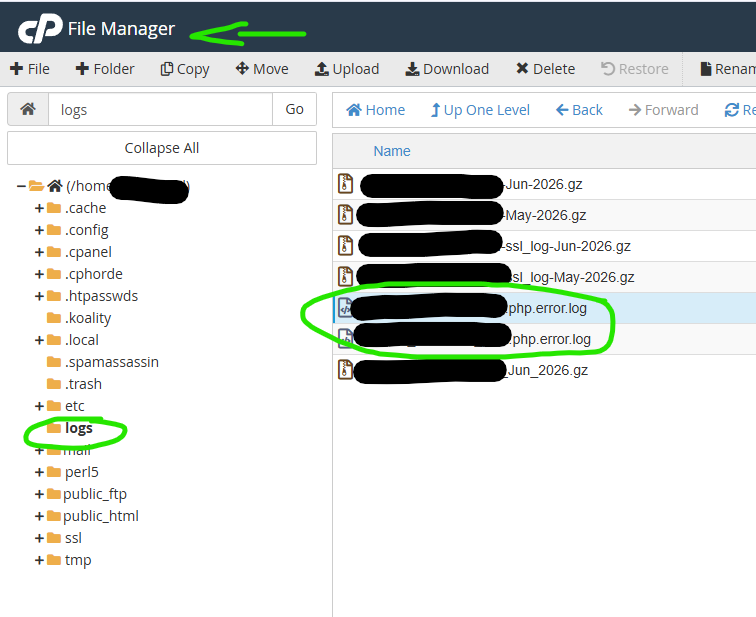
- Hosting control panel: If you have cPanel or similar hosting access, look for a Logs, Errors, or Error Log section. This often shows PHP fatal errors directly.
- SFTP or FTP: If you can access the site files, you may find server logs in a logs directory, depending on the host.
- WordPress debug log: You can enable WordPress Debug Mode in
wp-config.phpand write errors towp-content/debug.log. - On-screen debug output: You can temporarily show errors on the site, although I do not recommend leaving this enabled on a live public site.
If I have full hosting access, I usually start in cPanel because it gives me access to both logs and the file manager. That means I can find the error and fix the affected file without needing the WordPress dashboard.
How to enable WordPress Debug Mode
If the server logs are not available or do not show enough detail, enable WordPress Debug Mode. To do this, access your site files through cPanel File Manager, SFTP, or FTP and open the wp-config.php file in the root folder of the WordPress installation.
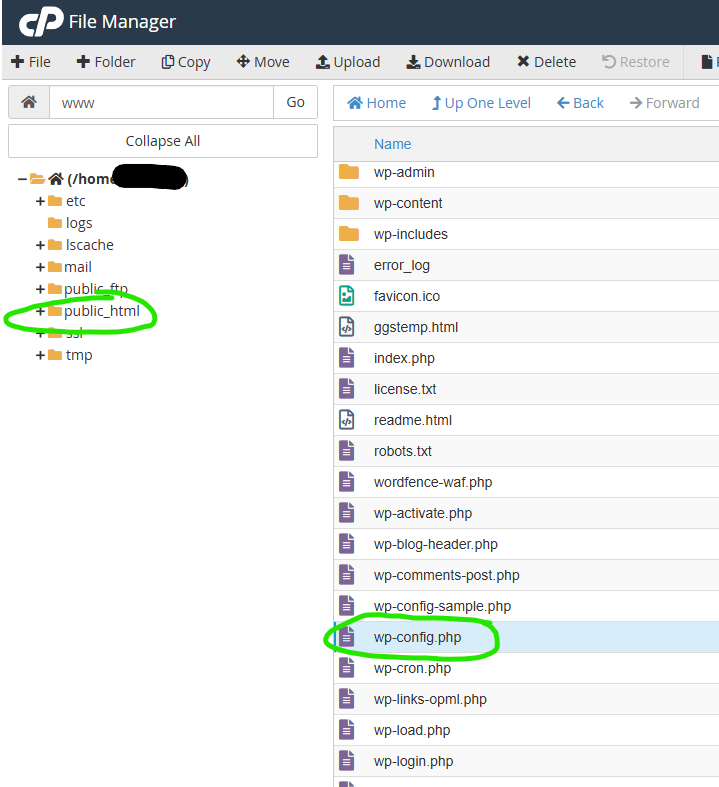
Look for this line:
define('WP_DEBUG', false);
Change it to:
define('WP_DEBUG', true);
That turns debugging on. But for most live sites, I prefer logging errors to a file instead of printing them publicly on the page. Add or update these lines in wp-config.php:
define('WP_DEBUG', true);
define('WP_DEBUG_LOG', true);
define('WP_DEBUG_DISPLAY', false);
With this setup, WordPress writes errors to:
wp-content/debug.log
If the file does not exist yet, reload the broken page once and check again. WordPress should create the log file if it has permission to write to the wp-content folder.
If you are working on a private staging site, displaying the error on-screen can be useful. On a live site, I avoid that because it may expose file paths and technical information to visitors.
How to read the debug.log file
When I open wp-content/debug.log, I look for fatal errors first. Warnings and notices may matter, but they usually do not bring the whole site down. Fatal errors are the ones that commonly trigger the WordPress critical error screen.
A typical log entry may look technical, but it usually gives us the exact answer. For example:
PHP Fatal error: Uncaught Error: Call to undefined function custom_theme_function() in /home/account/public_html/wp-content/themes/my-theme/functions.php:42
This tells us several useful things:
- PHP Fatal error: This is serious enough to stop the site from loading.
- Call to undefined function: The code is trying to use a function that does not exist or is not loaded.
- File path: The issue is in the active theme, inside
functions.php. - Line number: The problem is around line 42.
That is much better than guessing. If the error points to a plugin file, we focus on that plugin. If it points to the theme, we focus on the theme. If it points to custom code added recently, we inspect that code first.
If the message looks like technobabble, copy the exact fatal error and ask for a plain-language explanation. The important part is not memorizing PHP errors. The important part is using the log to identify the file, the line, and the type of failure.
What to do if you cannot access wp-admin
If the WordPress dashboard is unavailable, you need hosting access, cPanel, SFTP, or FTP. Full hosting access is ideal because you can check the logs and edit files from one place.
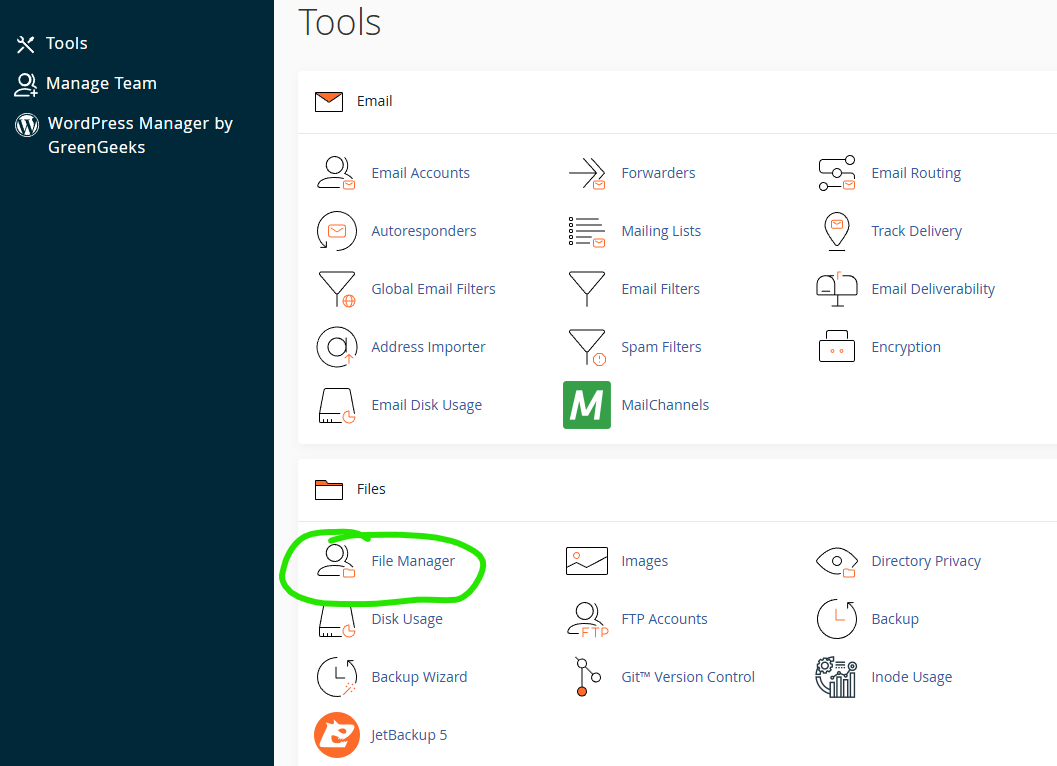
Here is the order I usually follow:
- Check the server error log first. In cPanel, look for the Logs or Errors section. This may immediately show the fatal error.
- Enable WordPress Debug Mode if needed. Edit
wp-config.phpand write errors towp-content/debug.log. - Identify the exact file causing the fatal error. Do not start disabling things until the log gives you direction.
- If the error points to a plugin, disable that specific plugin. Rename only that plugin’s folder inside
wp-content/plugins/, not every plugin folder at once unless the logs are unclear. - If the error points to the theme, switch themes or fix the theme file. You can rename the active theme folder to force WordPress to fall back to a default theme if one is installed.
- If the error started after a PHP version change, test a compatible PHP version. Some older plugins and themes break when hosting updates PHP.
- If the log shows memory exhaustion, increase the memory limit. This is usually visible as an allowed memory size exhausted error.
Renaming plugin folders can be useful, but I treat it as a targeted fix, not the first move. If the log says the fatal error is inside wp-content/plugins/example-plugin/, then disabling that plugin makes sense. If we blindly rename multiple folders, we may create new errors and make the situation harder to read.
Common real-world scenarios
Critical error after editing theme or plugin code
This is one of the easiest causes to confirm. If you edited a PHP file and the site immediately broke, check the log and then review the last file you changed. A missing semicolon, extra bracket, or incorrect function name can take down the site. The fix is usually to correct the syntax or restore the previous version of that file.
Critical error after a plugin or theme update
If the error appears right after an update, the updated plugin or theme may not be compatible with your PHP version, WordPress version, or another plugin. The log should show whether the fatal error is coming from that plugin or theme. In that case, disable the specific item, roll it back, or update the PHP version if the plugin requires a newer one.
Critical error after a PHP version update
Hosting companies sometimes update PHP versions automatically or encourage site owners to switch versions. That can break older code. If the fatal error begins after a PHP change, check whether the affected plugin or theme supports that PHP version. Temporarily switching back can get the site online while you update or replace the incompatible code.
Critical error only in wp-admin
Sometimes the public site loads, but wp-admin crashes. That often points to a plugin that only runs in the dashboard, an admin-only theme function, or a WooCommerce/admin extension issue. In this case, make sure you trigger the error by visiting the broken admin URL, then check debug.log right after. The newest fatal error is usually the one you want.
Critical error during WooCommerce checkout
If the site works until checkout, reproduce the checkout error and then check the log. Payment gateways, shipping plugins, tax plugins, and custom checkout code are common places to look. The log should show whether the fatal error came from WooCommerce itself, an add-on, the theme, or custom code.
Clean up debug settings after the site is working
Once the site is loading again, turn off public debugging. In wp-config.php, change debug mode back or leave logging off:
define('WP_DEBUG', false);
If you used a debug log, you can also delete the old wp-content/debug.log file after saving any details you need. Debug logs can contain file paths and other technical information, so they should not sit around longer than necessary on a live site.